
Steroid_Kit
Steroid Vault›Managing Secrets
Managing Secrets
This guide covers the full lifecycle of a secret in the Steroid Vault: opening the Vault, adding credentials for each MCP server, editing or rotating them, and understanding the server-specific naming conventions.
Open Vault
Open the Vault TUI
steroid
# Navigate to VAULT, then press Enter
The first screen lists servers already present in the credential index, not every catalog server. Open a server with Enter to manage SECRETS/CONFIG. There are no last-used-30-days columns.
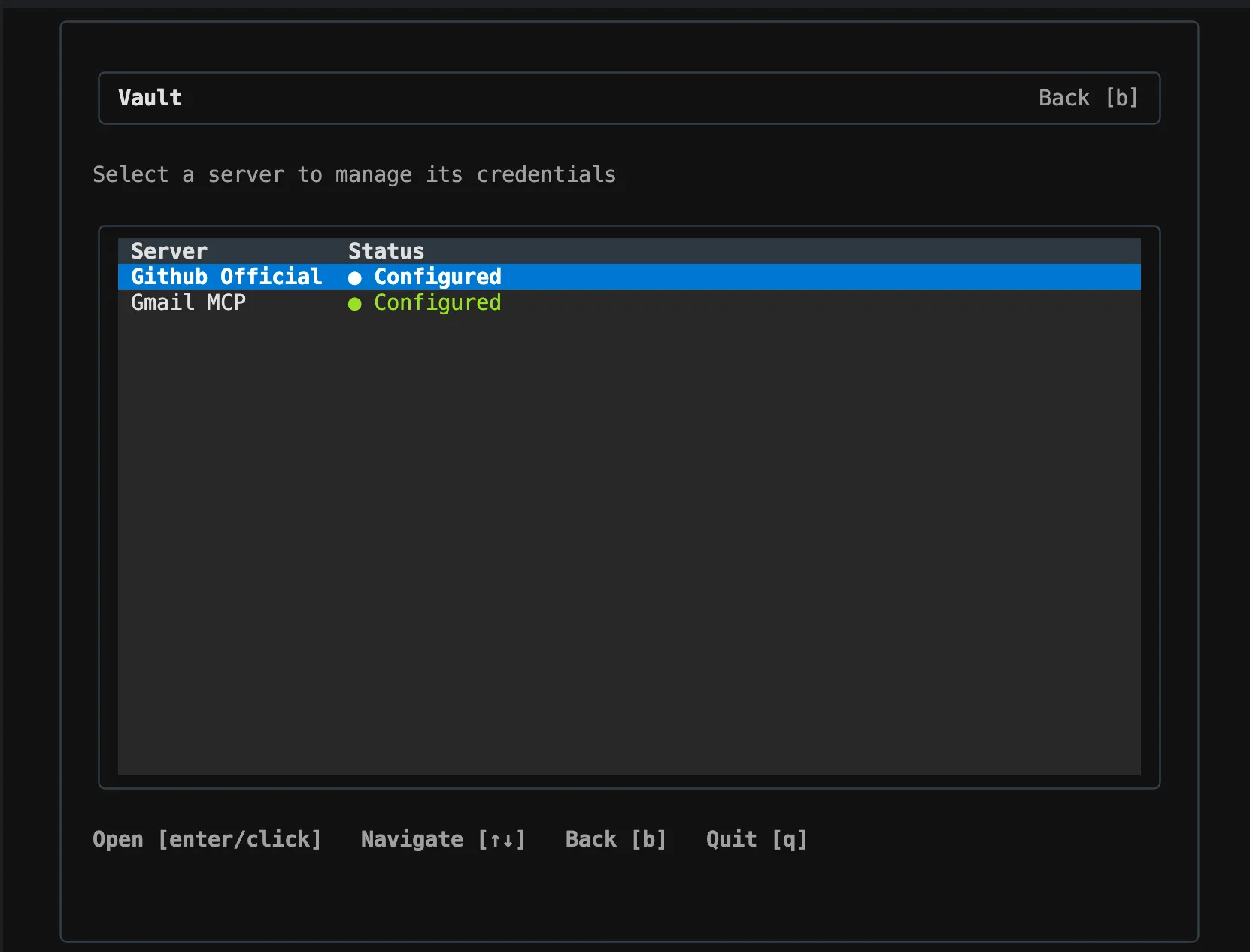
| Key | Action |
|---|---|
| Enter | Open the selected server |
| Tab | Switch SECRETS/CONFIG tables |
| A | Add an entry to the active table |
| E | Edit the selected secret's value |
| D | Delete the selected secret (prompts for confirmation) |
Add a Secret
- First-use tool/build elicitation creates a new server entry; the Vault list is not a free-form catalog browser.
- Open an indexed server, select SECRETS, and press A.
- Enter the exact catalog secret name, including its prefix (see the table).
- Enter the masked value and confirm. Persistent storage uses the encrypted-file keyring; check any persistence warning.
- For CONFIG, use the exact flat path such as
slack.team_id; config and secrets are distinct. - Index changes invalidate the local cache. Refresh cloud AP Connections separately when rotating credentials used by published flows.
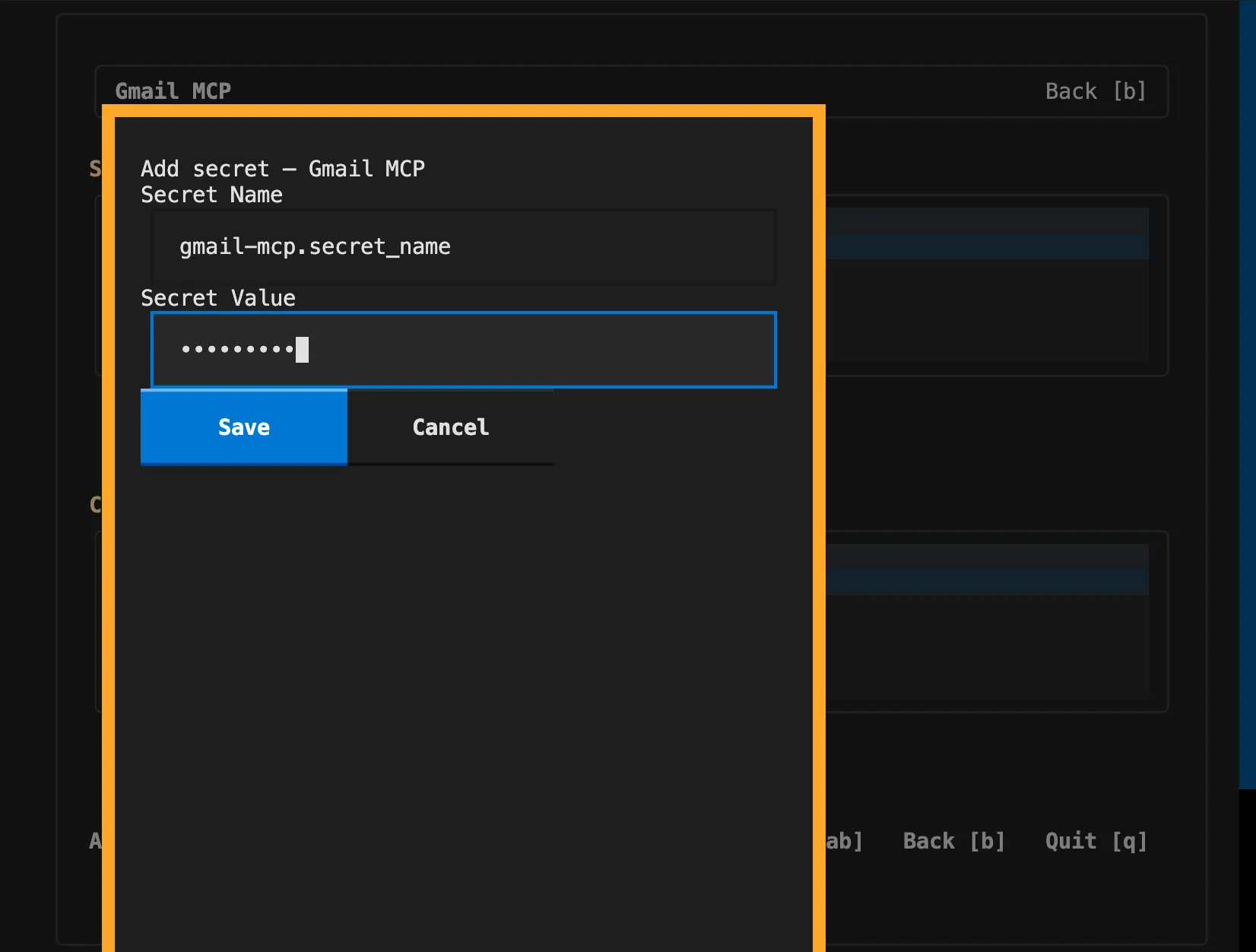
Secret names are case-sensitive and must match the convention Steroid expects. Using the wrong name means Steroid can't find the secret, and the tool call will fail with a vault miss.
| Server | Secret Name | Notes |
|---|---|---|
| github-official | github.personal_access_token | Grant permissions appropriate to the repository and operation |
| slack | slack.bot_token | Server config also requires slack.team_id |
| notion | notion.internal_integration_token | Allow the integration access to required pages |
| brave | brave.api_key | Brave Search API credential |
| postgres | postgres.url | Secret connection URL, not a separate password/config.connection_string |
Edit / Delete
Edit a Secret
- Use arrow keys to highlight the secret you want to change.
- Press E to open the edit dialog.
- The current value is pre-filled in a masked input; replace it with the intended value.
- Press Enter to save. The vault entry is updated in place.
- Local index changes invalidate cached credentials; persisted cloud AP Connections have a separate refresh lifecycle.
Delete a Secret
- Highlight the secret using arrow keys.
- Press D. A confirmation prompt appears showing the secret name.
- Use the confirmation dialog button to confirm deletion.
- Later local calls can elicit the missing value again. Deletion is not third-party token revocation and does not remove a cloud AP Connection.
NOTE
steroid cred store opens the local credential TUI directly. Adding OpenAI or Anthropic keys here does not enable Invoke LLM models; those are advertised by authenticated coding-agent CLIs.